 QuickPay
Enter or scan
Add QR bills or create a bank transfer using an IBAN.
MAC APP FOR SWISS PAYMENTS
Prepare QR bills and bank transfers, keep track of due dates and export payment orders to send to your bank.
macOS 14 or later
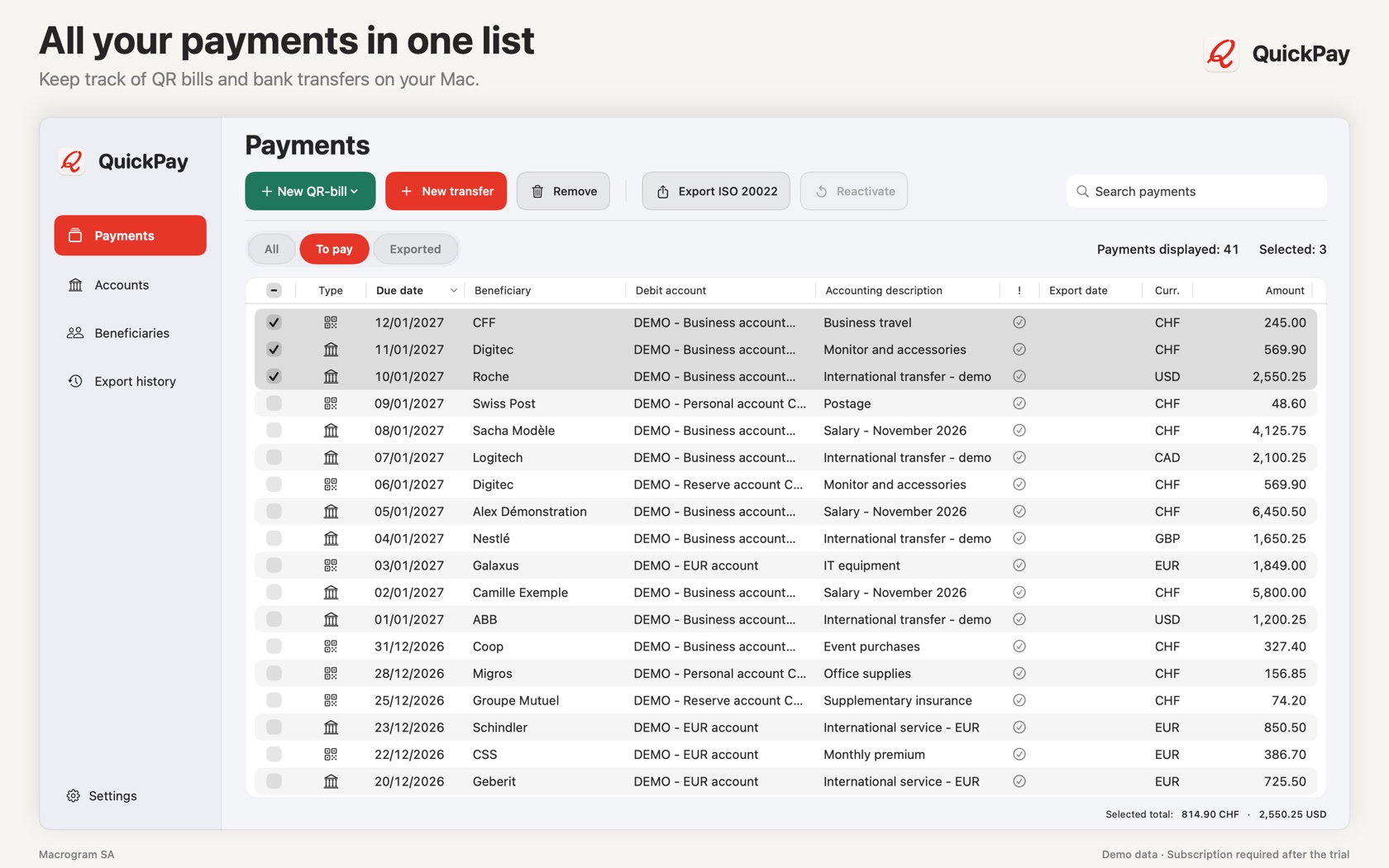
Prepare your payments in QuickPay, then submit your payment orders through online banking.
Add QR bills or create a bank transfer using an IBAN.
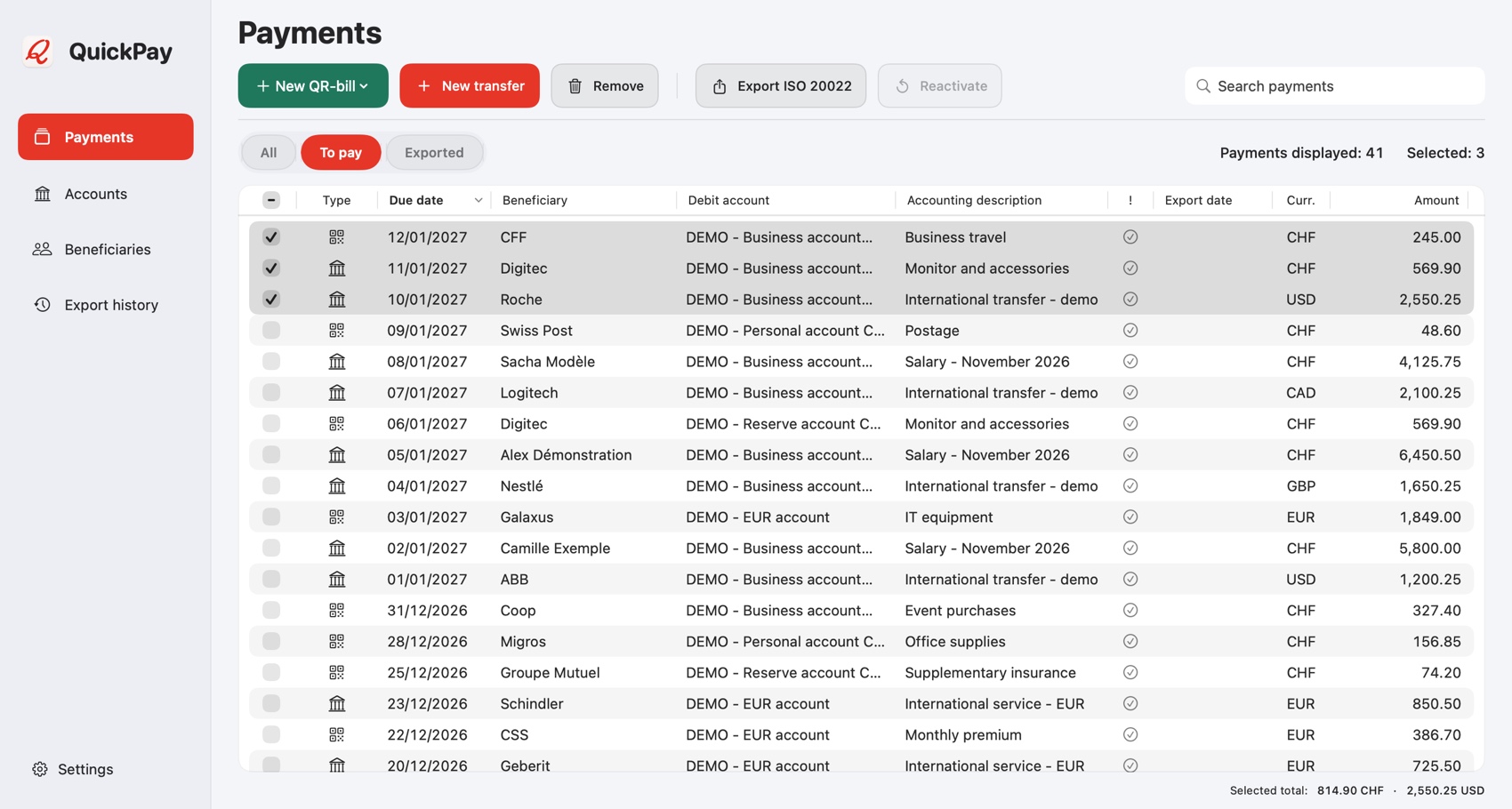
See pending payments and orders you’ve already exported. Check accounts, amounts and due dates before sending them.
Create an ISO 20022 payment file to import into online banking.
UPGRADE GUIDE
Move your accounts and payments from QuickPay 4.1 to the new Mac app.
Keep the old QuickPay and its backup until you’ve checked the imported data.
In the old QuickPay, open File and choose the database backup command. Keep the resulting .qp4 file.
Look for automatic backups in Documents › QuickPay Backups on your old Mac.
Install and open the new app on a Mac running macOS 14 or later. If you’re moving to another Mac, copy the .qp4 file to it.
If iCloud sync is on in the new app, turn it off in QuickPay settings first.
Choose File › Import a QuickPay backup… and select your .qp4 file.
In To pay and Exported, compare accounts, amounts, due dates and statuses with the old QuickPay.
If you’re unsure whether you’ve already submitted a payment order, check its status in online banking before sending it again.
If you already have a QuickPay 4.1 .qp4 backup, import it directly. You can also check Documents › QuickPay Backups on your old Mac. If you only have .fmp12 files or a backup from another version, contact support for help.
The app reads the backup and saves the imported data in its own storage. Your original .qp4 backup and FileMaker files stay intact.
“Exported” means a payment order was prepared for the bank. Check online banking to see if the bank received and processed it.